> ## Documentation Index
> Fetch the complete documentation index at: https://docs.ciaraai.com/llms.txt
> Use this file to discover all available pages before exploring further.
# Branding
> This section lets you personalize the look and feel of your sales agent's chat interface, creating a branded experience for your customers.
## Business Logo
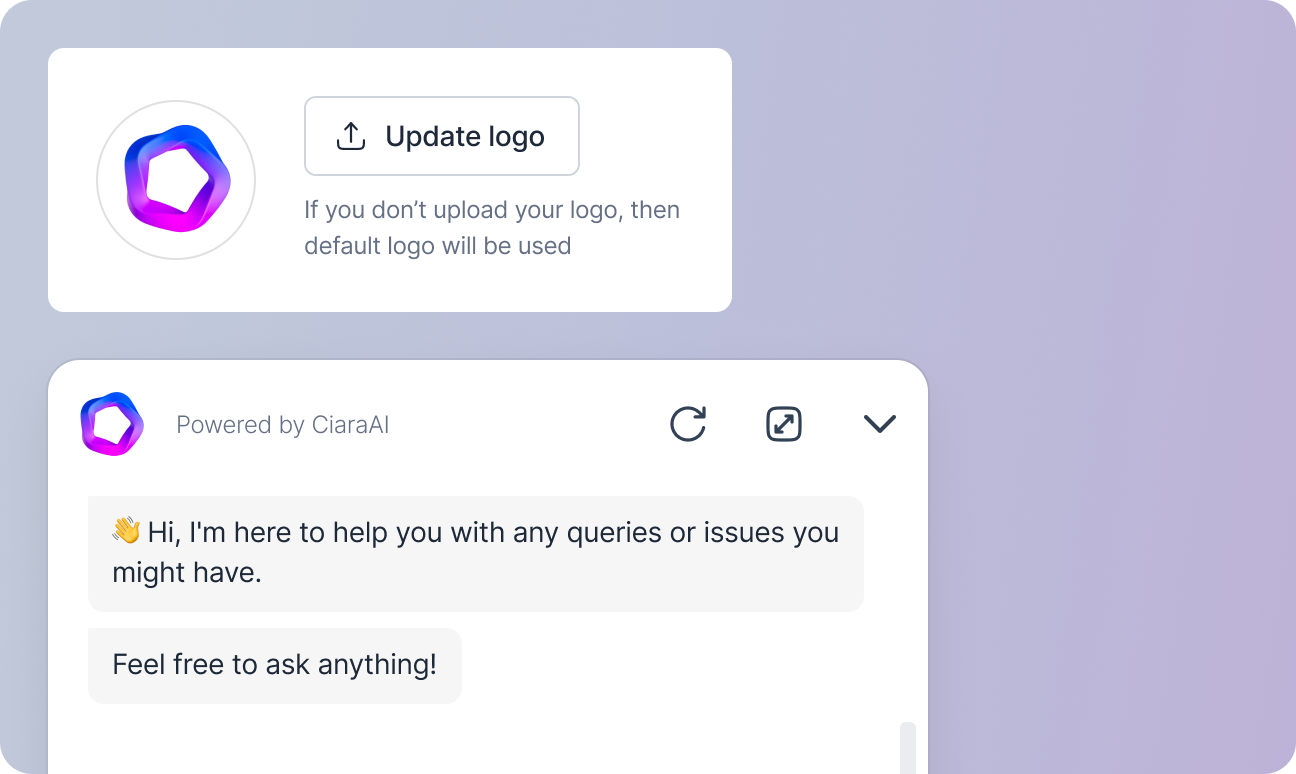 Upload your business logo to display on the agent’s chat interface. If no logo is uploaded, the default CiaraAI logo will be used.
## Chat Bubble Icon
Upload your business logo to display on the agent’s chat interface. If no logo is uploaded, the default CiaraAI logo will be used.
## Chat Bubble Icon
 Upload an icon to be displayed on the chat bubble. You can also change the bubble's background color. If no icon is uploaded, the default CiaraAI icon will be used.
## Chat Message Fonts
Upload an icon to be displayed on the chat bubble. You can also change the bubble's background color. If no icon is uploaded, the default CiaraAI icon will be used.
## Chat Message Fonts
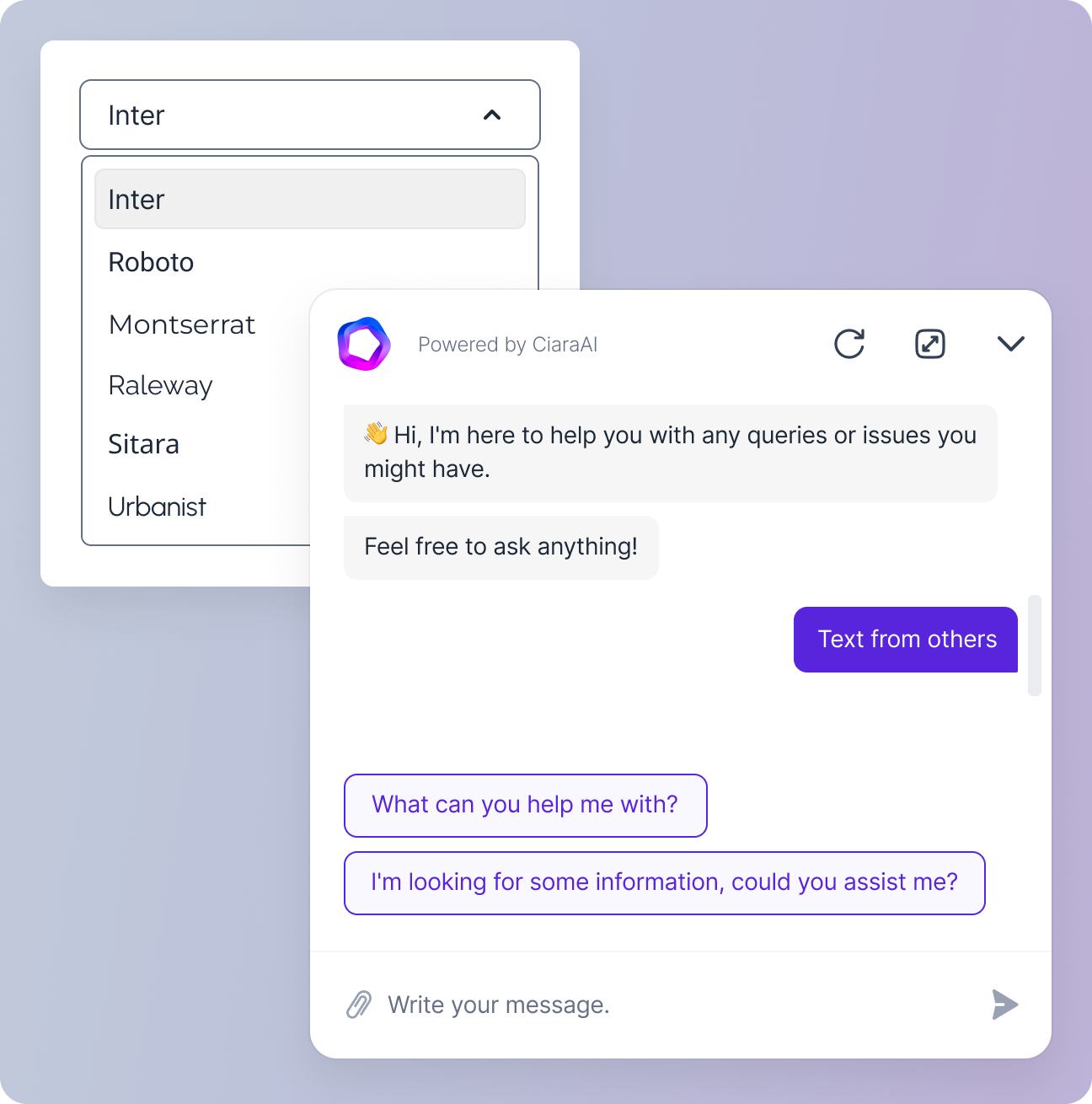 Select one font from a set of six available options in the Font dropdown: `Inter`, `Roboto`, `Montserrat`, `Raleway`, `Sitara`, and `Urbanist`. If no font is selected, Inter will be used by default.
## Agent Message Colors
Select one font from a set of six available options in the Font dropdown: `Inter`, `Roboto`, `Montserrat`, `Raleway`, `Sitara`, and `Urbanist`. If no font is selected, Inter will be used by default.
## Agent Message Colors
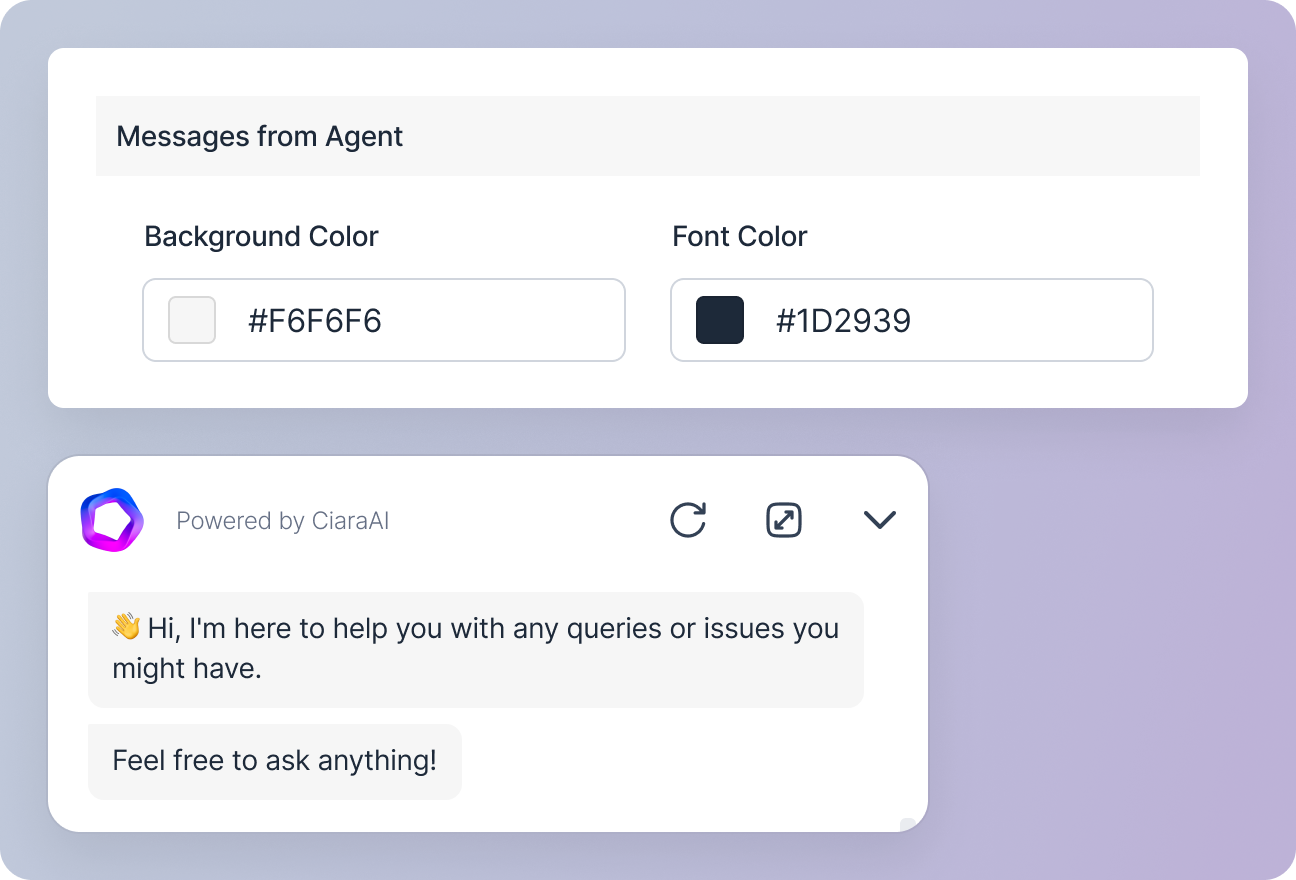 Choose the background and font color for the messages sent by the agent. You can select colors from a palette or enter the color hex codes.
## Customer Message Colors
Choose the background and font color for the messages sent by the agent. You can select colors from a palette or enter the color hex codes.
## Customer Message Colors
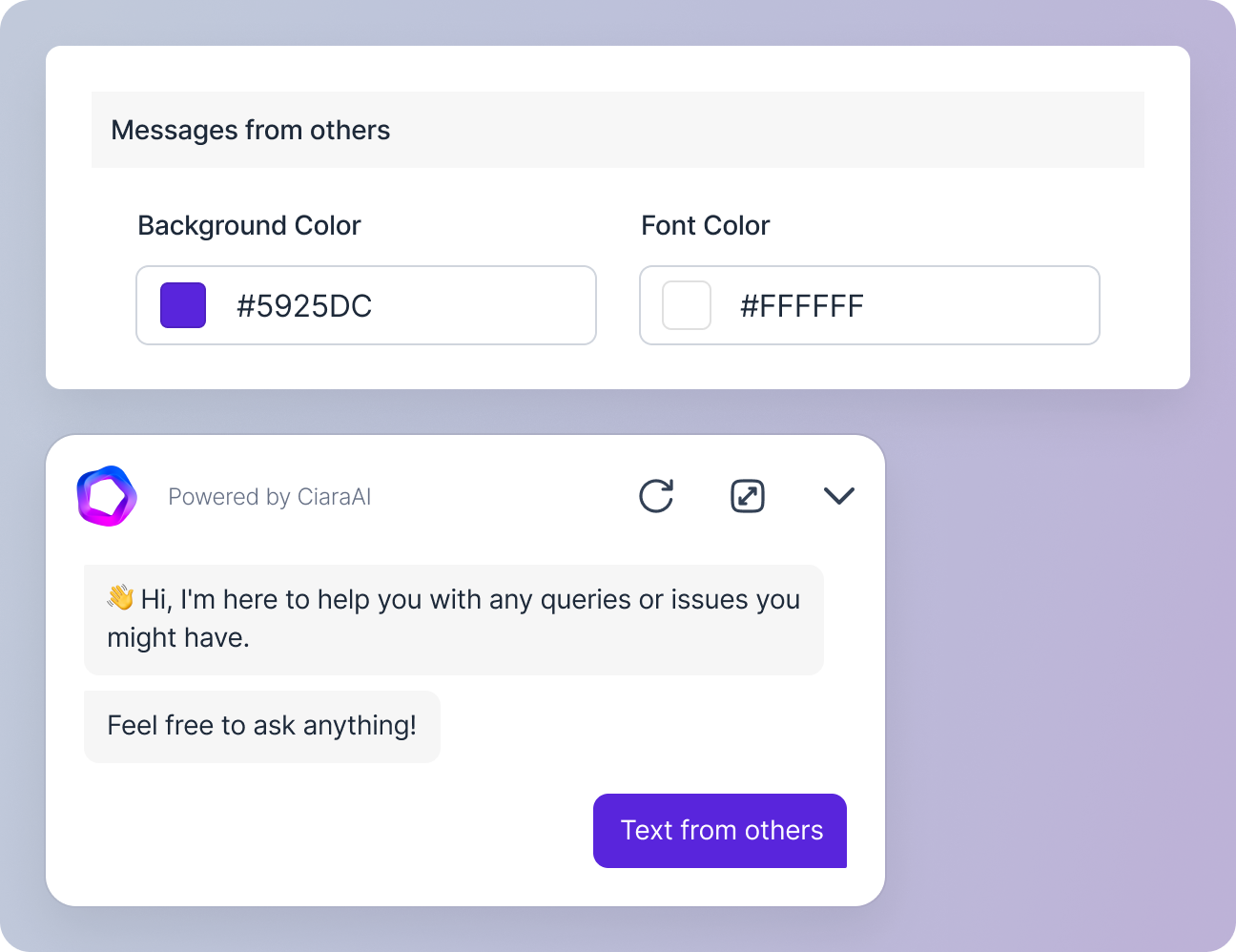 Choose the background and font color for the messages sent by the customers. You can select colors from a palette or enter the color hex codes.
## Prompt Customization
Choose the background and font color for the messages sent by the customers. You can select colors from a palette or enter the color hex codes.
## Prompt Customization
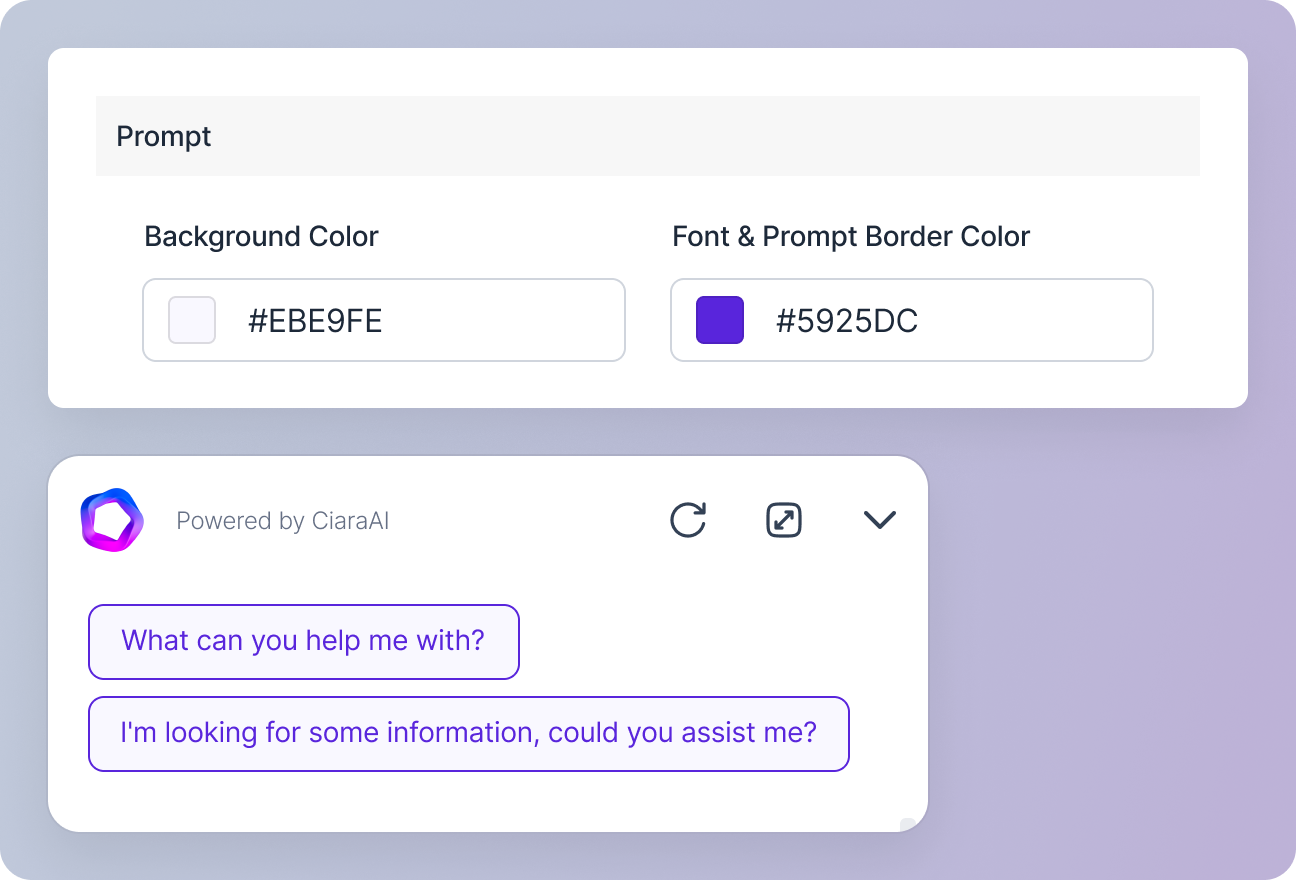 Customize the prompts from the agent by choosing the background color, and the font and border color for the prompt text. The prompt background color is set at **30%** opacity, changing to **60% opacity on hover**.