> ## Documentation Index
> Fetch the complete documentation index at: https://docs.ciaraai.com/llms.txt
> Use this file to discover all available pages before exploring further.
# Creating Process
> To create a support agent, you must complete all necessary steps in the agent creation process.
## Steps to Complete:
1. Agent Details
2. Knowledge Base - Files
3. Knowledge Base - URLs
4. Context
5. Customization
6. Branding
7. Review & Create
## Step-by-Step Guide:
 The completion status of each step is reflected on the stepper.
 Navigate freely between steps by clicking on the stepper or using the previous and next buttons.
 In the final step, **Review & Create**, click on the `Create agent` button to start the creation process. This button will be enabled only after all required details are provided.
## After Submission
In the final step, **Review & Create**, click on the `Create agent` button to start the creation process. This button will be enabled only after all required details are provided.
## After Submission
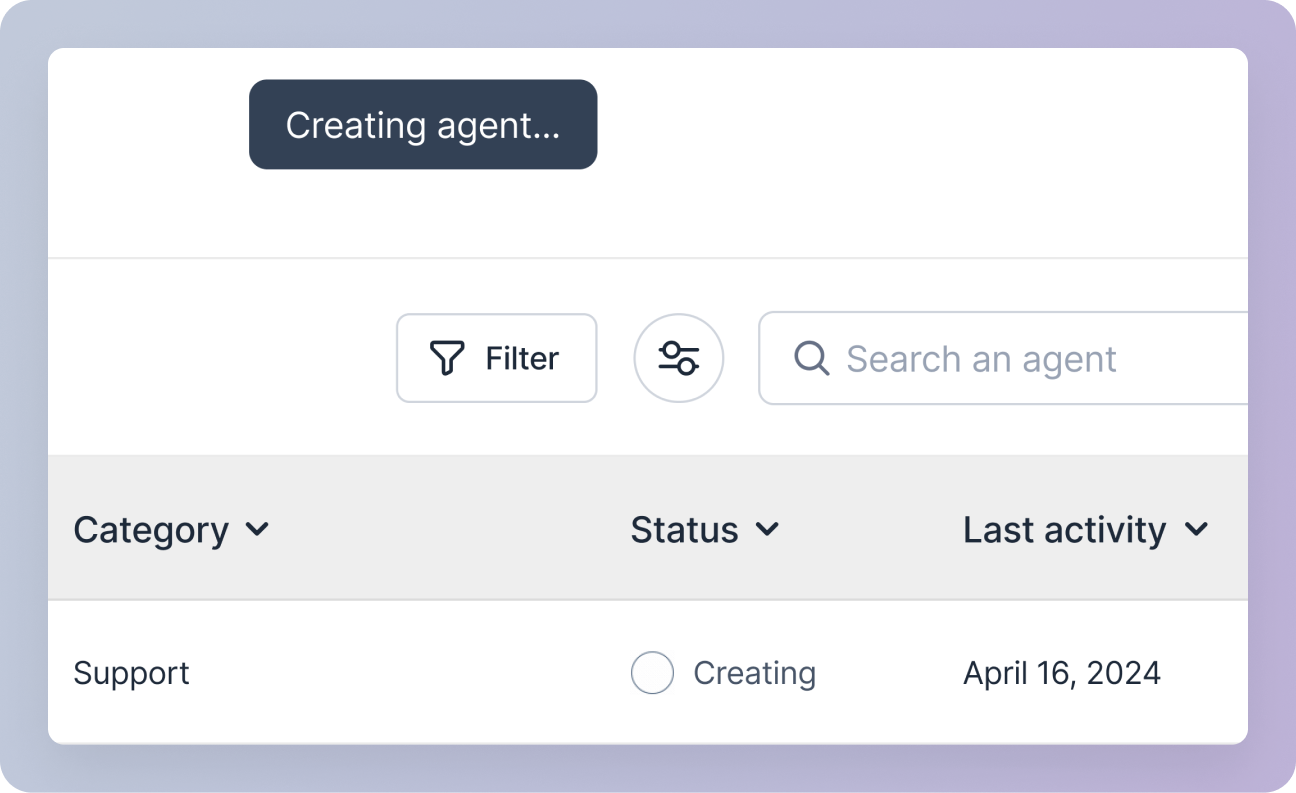 * The agent creation process will begin in the background.
* You will be redirected to the agent management screen, where the agent status will display as **Creating** in the agents table.
* The agent creation process will begin in the background.
* You will be redirected to the agent management screen, where the agent status will display as **Creating** in the agents table.
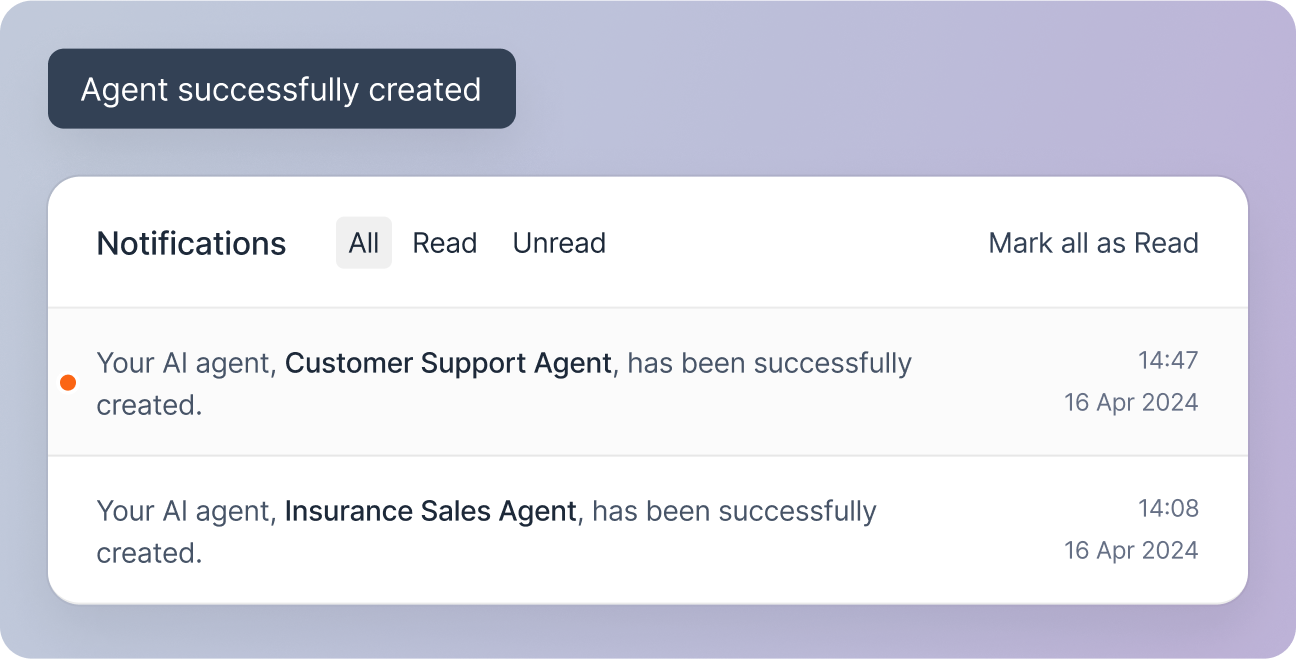 Upon successful creation, a snackbar notification and a notification in your notification center will confirm the new agent's creation and the agent status will display as **Active** in the agents table.
 Once created, you can access and manage your newly created agent.