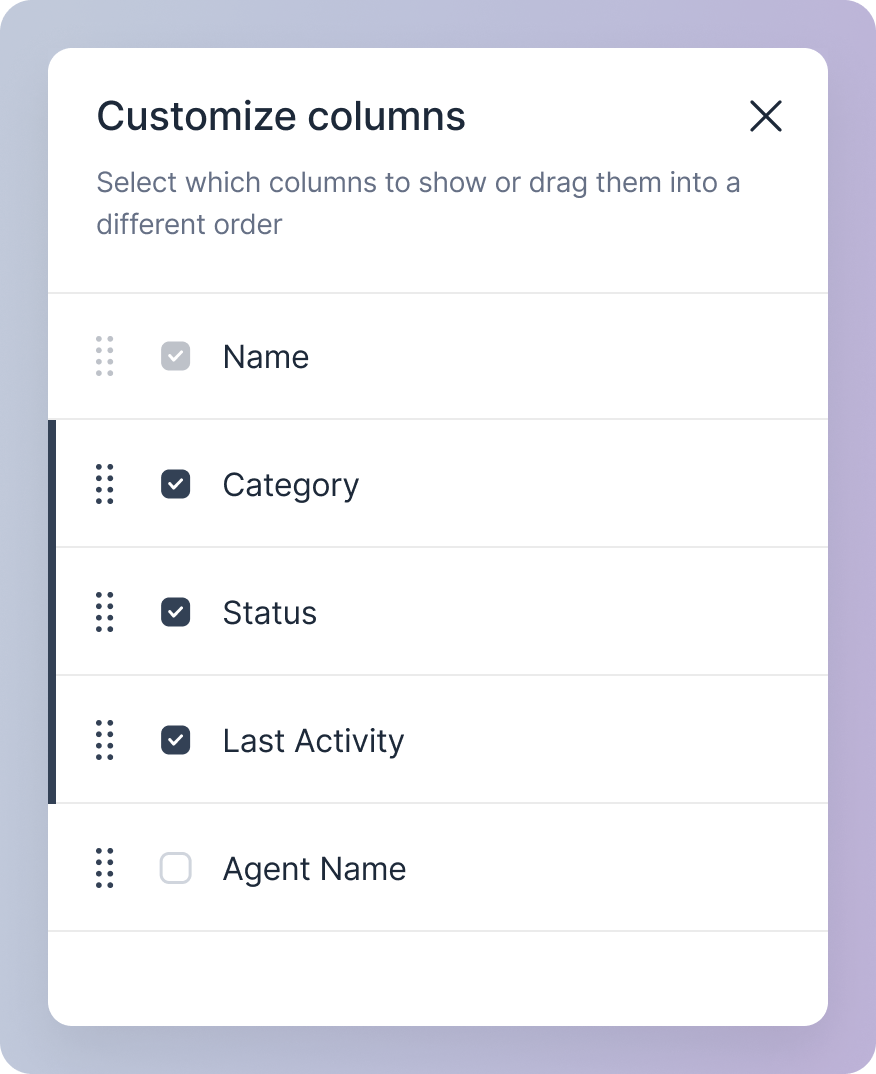
- Show or hide columns
- Change the order of columns
1
Accessing the Customize Drawers
Click on the Customize icon button. This opens a drawer from the right edge of the screen.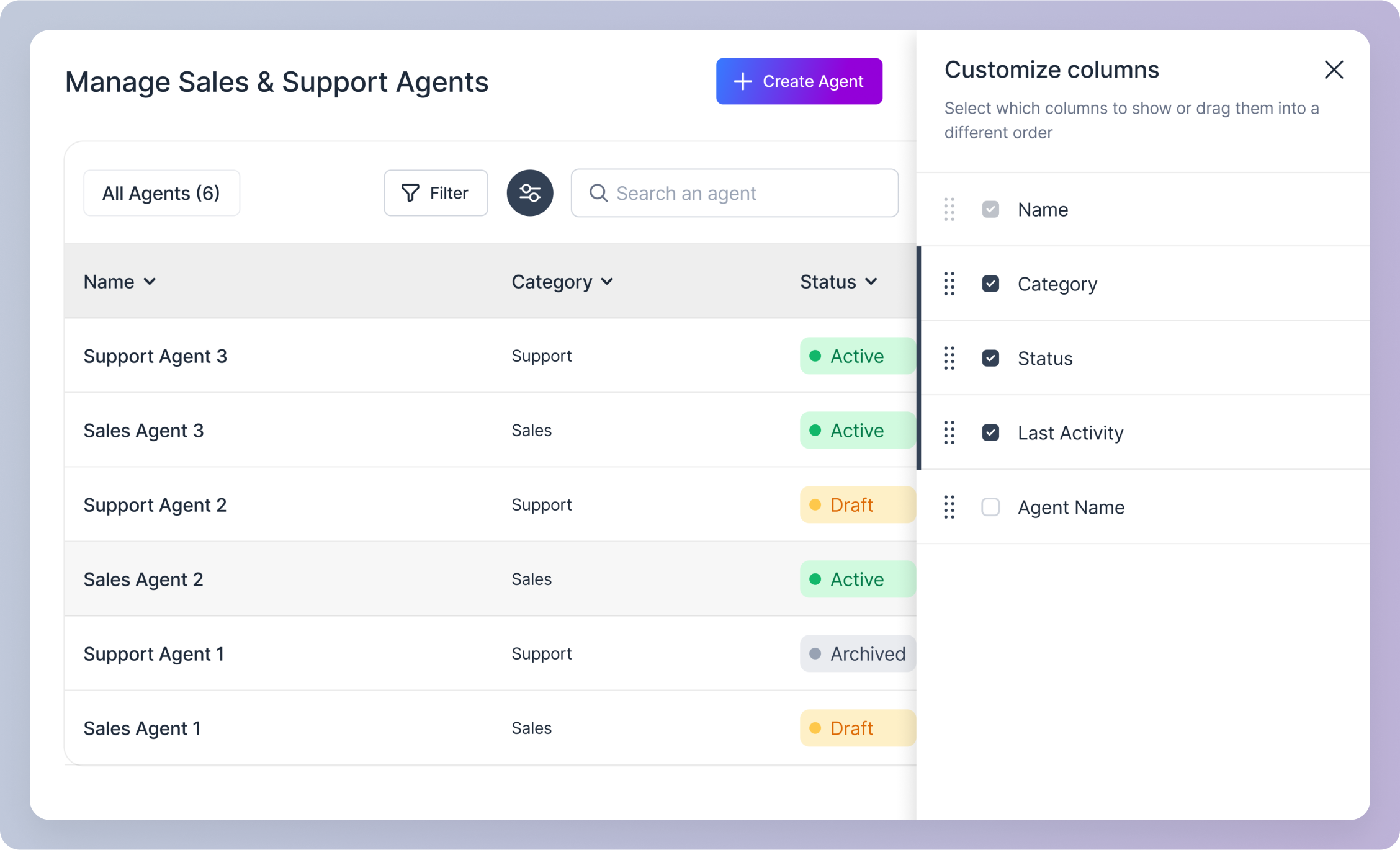
2
Show or Hide a Column
To show a column, check the corresponding checkbox in the customization drawer. The change is reflected immediately.

3
Change Order of Columns
- To change the order of columns, drag and drop them within the drawer. Click and hold the 8-dot draggable handle to initiate drag and drop.
- The position at the top of the drawer corresponds to the left position in the table. Dragging a column to a higher position in the drawer moves it to the left in the table.