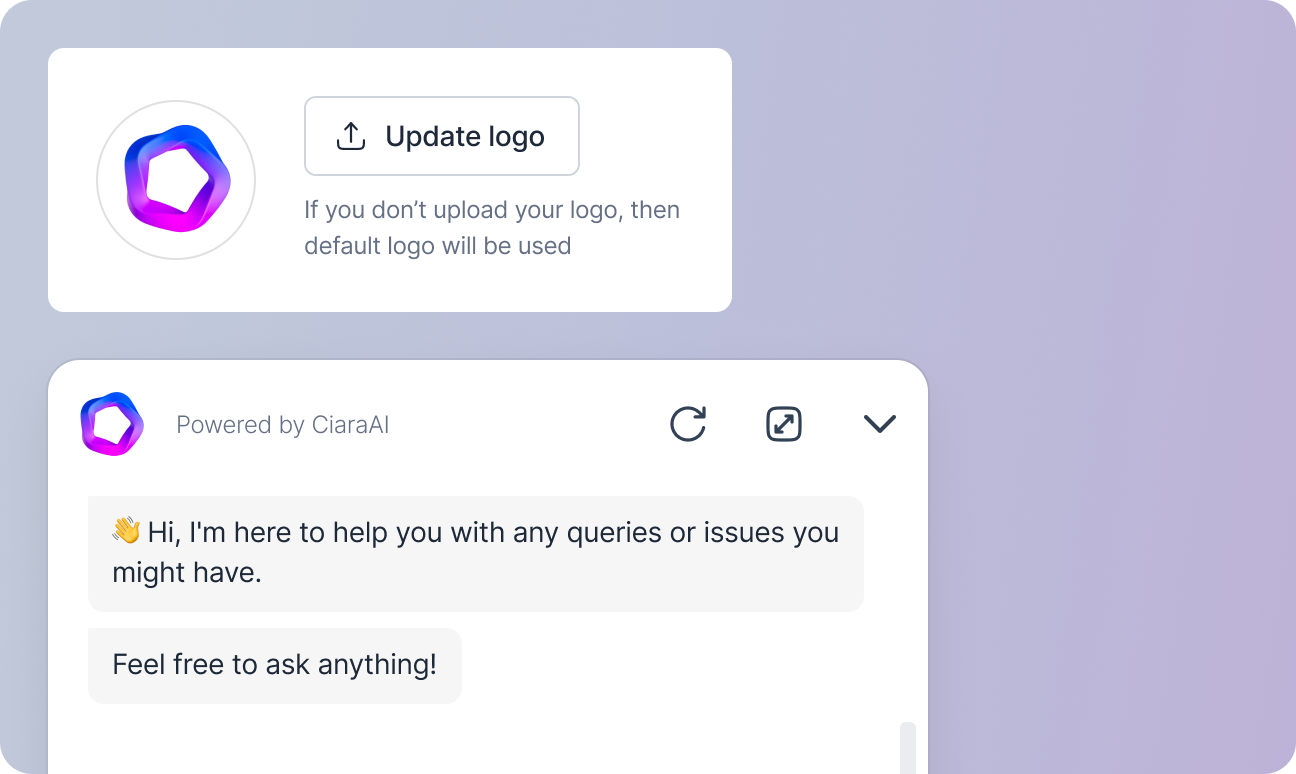
Upload your business logo to display on the agent’s chat interface. If no logo is uploaded, the default CiaraAI logo will be used.

Chat Bubble Icon

Upload an icon to be displayed on the chat bubble. You can also change the bubble’s background color. If no icon is uploaded, the default CiaraAI icon will be used.

Chat Message Fonts

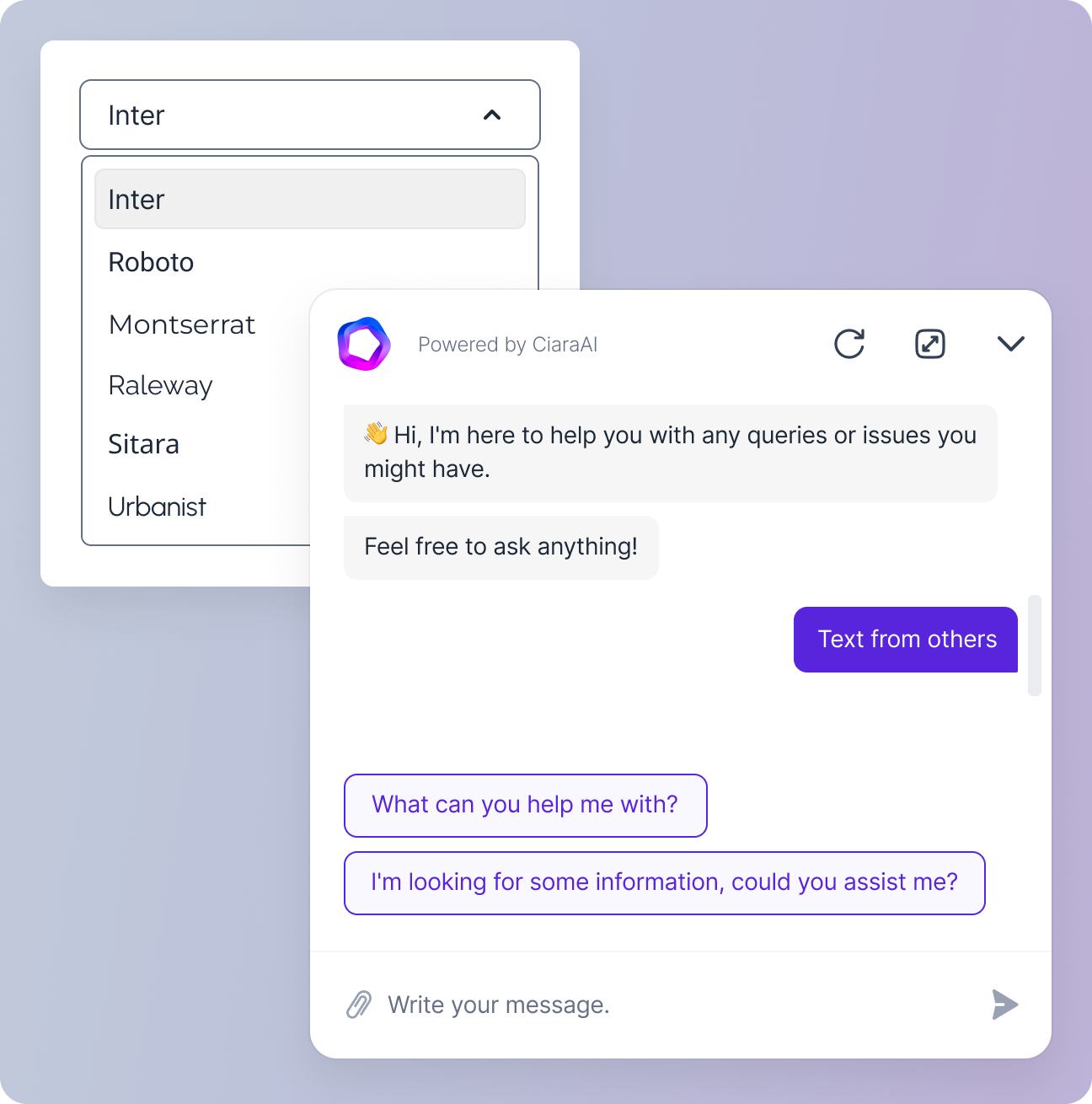
Select one font from a set of six available options in the Font dropdown: Inter, Roboto, Montserrat, Raleway, Sitara, and Urbanist. If no font is selected, Inter will be used by default.

Agent Message Colors
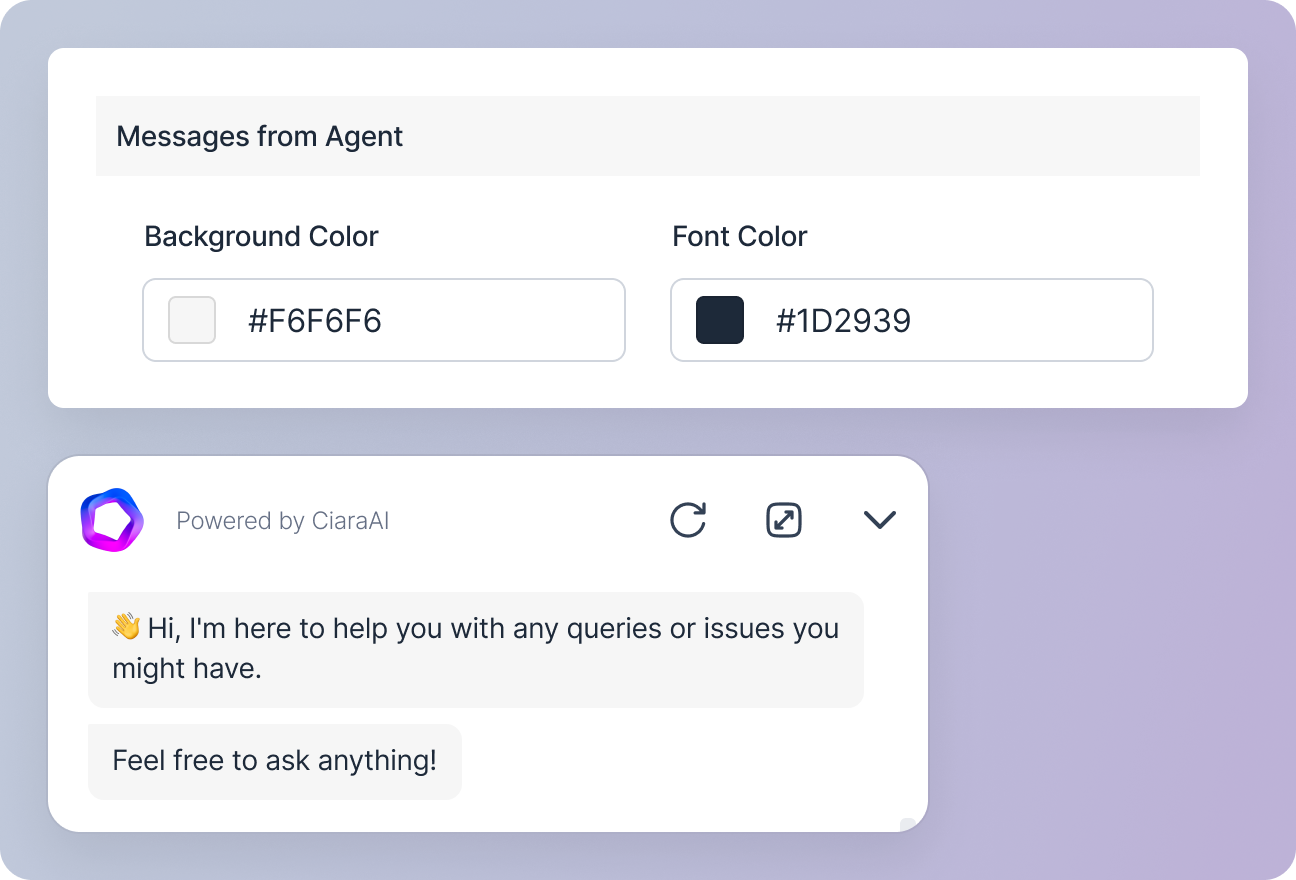
Choose the background and font color for the messages sent by the agent. You can select colors from a palette or enter the color hex codes.

Customer Message Colors

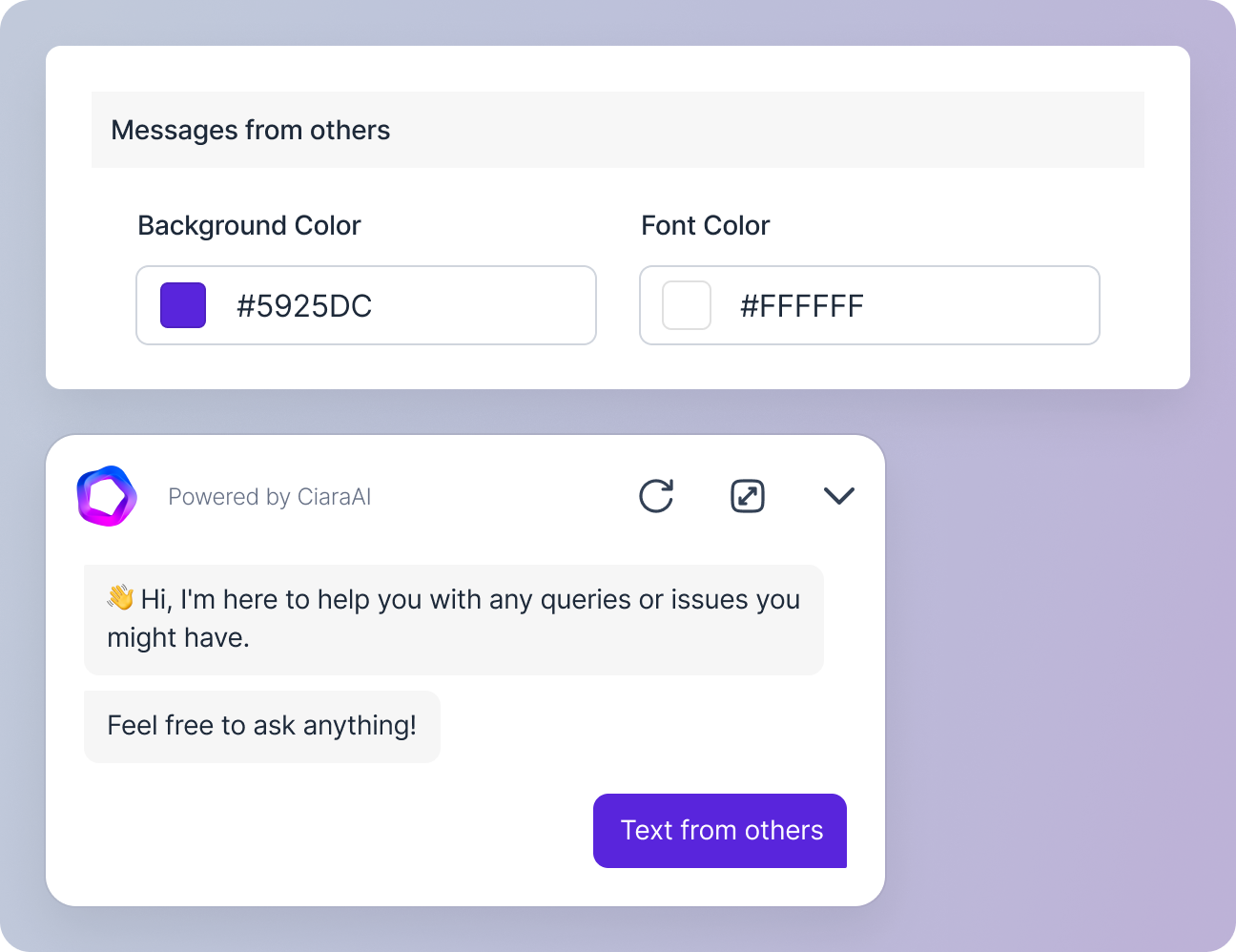
Choose the background and font color for the messages sent by the customers. You can select colors from a palette or enter the color hex codes.

Prompt Customization

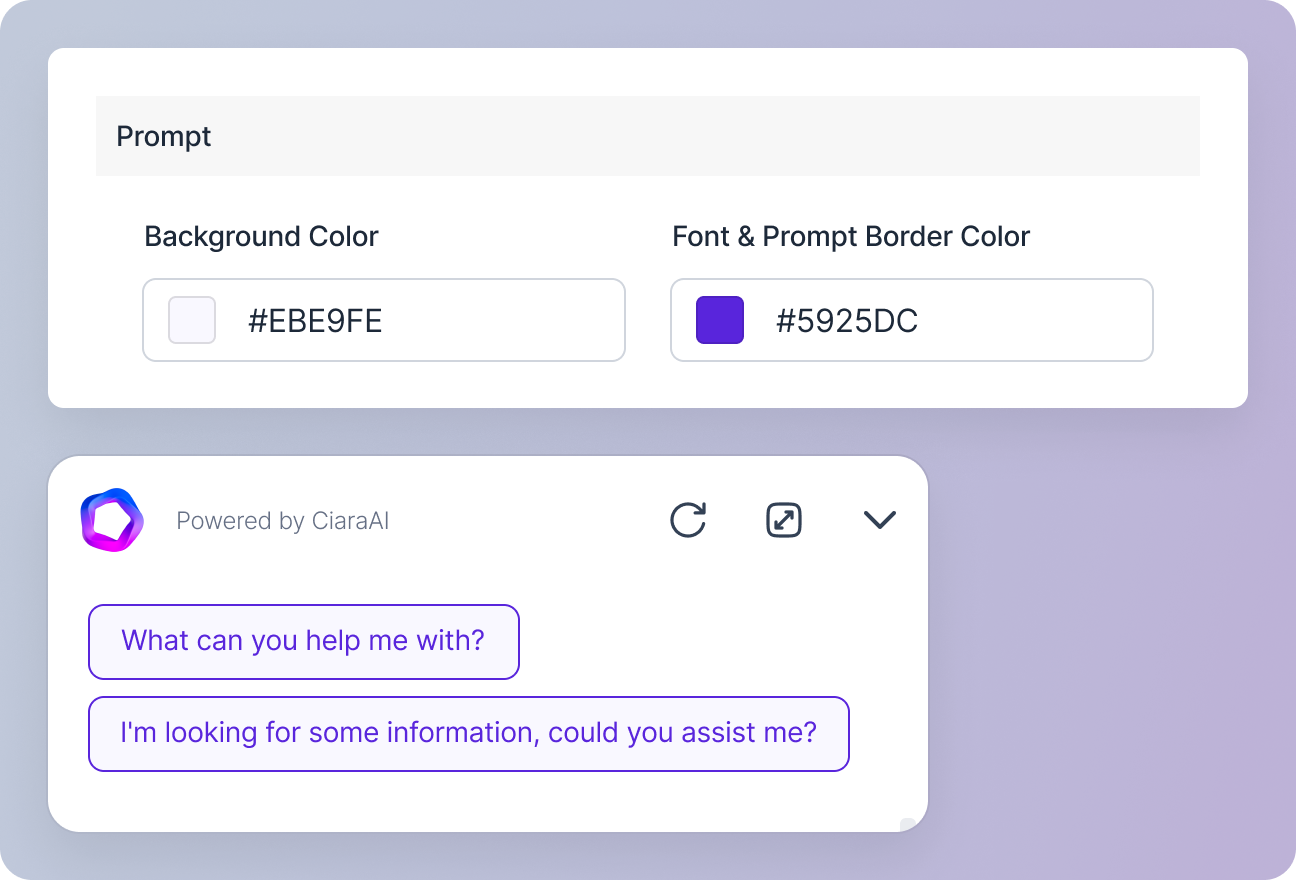
Customize the prompts from the agent by choosing the background color, and the font and border color for the prompt text. The prompt background color is set at 30% opacity, changing to 60% opacity on hover.